A more useful home-office screen does not have to be expensive, but it should fit the work and the desk. A cramped display can slow down calls, writing, and daily planning. A screen with extras you never use can take money from other parts of your workspace.
The best budget monitors for work from home balance clear text, comfortable use, and the connections your computer needs. Your daily tasks, desk space, and laptop setup all shape that choice. Refresh rate is the number of times a display refreshes its image each second, measured in hertz.
You can focus on the features that affect your work, then leave costly extras aside. This approach helps you find a screen that supports productivity without crowding your desk or stretching your budget. The best value is the screen that supports the workday without adding features that will sit unused.
Key Takeaways
- Match screen size and resolution to your daily tasks.
- Check desk space and viewing position before choosing a larger display.
- Confirm that the monitor has the right ports for your computer.
- Spend more only for features you expect to use often.
- Compare current prices and check the stand’s adjustment range.
Best Budget Monitors for Work From Home: Quick Picks
For most people working at a fixed home desk, a 27-inch 1440p monitor is the best all-around starting point. It provides room for side-by-side windows on a standard desk that is 60-75cm deep. A 27-inch 1440p display is the strongest starting point for general home-office work.
The best monitors for home office use do not all need the same screen or features. Pick a size that suits your desk and the work you do most often.
Choose the screen that fits your work, not the one with the longest feature list. The most suitable pick is not always the cheapest.
- Choose 24-inch 1080p for compact desks or focused tasks.
- Choose 27-inch 1440p for typical multitasking.
- Choose 32-inch 1440p or 4K for heavy spreadsheets or creative workloads.
A 24-inch monitor leaves more desk space for a laptop, papers, or other tools. A 32-inch screen can keep dense work visible, but it needs a desk and seating position that suit its size. The right option supports productivity without taking over your room.
For this guide, the budget tier means monitors priced under $200. Compare the full price and the features you will use, rather than assuming a lower cost always means better value. Set a firm spending ceiling below $200 before comparing optional upgrades.
Which budget models are worth comparing?
The shortlist comes down to whether you value an adjustable stand, extra resolution or the lowest entry price. The Dell 27 Plus S2725HSM adds stand adjustment, while the MSI Pro MP273QW E14 gives you more pixels. Each option makes a different trade-off within a sub-$200 budget.
Listed and sale prices can change, so treat sale pricing as a temporary offer. A fixed stand may need a separate riser or arm if it does not fit your seating position.
| Model | Size and resolution | Listed price and strength or compromise |
|---|---|---|
| Dell 27 Plus S2725HSM | 27-inch, 1080p | $175 listed, sale listings as low as $140; 300-nit brightness, height and swivel adjustment, two HDMI ports |
| MSI Pro MP273QW E14 | 27-inch, 1440p | $190 listed; 427-nit brightness, static stand, no built-in USB ports |
| MSI Pro MP243W E14 | 23.8-inch, 1080p | $99-$120; lower entry price, tilt-only adjustment |
The Dell pairs a flexible stand with a 1080p display, which may suit work that does not need extra resolution. The MSI Pro MP273QW E14 offers 1440p while keeping its listed price below $200. Its static stand gives you less room to change screen height.
The smaller MSI costs less than the other two models, but its tilt-only stand cannot raise the display. A riser or arm can help, though it adds to the overall cost. Check the current listing and the stand’s adjustment range before making a final choice.
What monitor size fits your desk and work style?
A 24-inch screen is the space-saving choice, while 27 inches is the more flexible fit for multitasking. The best monitor size for work from home depends on the work that needs to stay visible and the desk you have. Twenty-seven inches suits many home-office users who need multiple windows visible, provided the desk has enough depth.
A 22- or 24-inch monitor can work well for multipage documents or streaming when space and budget are limited. A 32-inch monitor adds room for spreadsheets, coding, and creative work. A 34-inch display gives you a wider workspace for apps arranged side by side.
| Size | Suitable work | Desk situation | Main trade-off |
|---|---|---|---|
| 22-24 inches | Writing, email, multipage documents | Compact or shallow desk | Less room for several windows |
| 27 inches | Calls, documents, multitasking | Standard desk with enough depth | Needs more room than a compact screen |
| 32 inches | Spreadsheets, coding, creative work | Desk with more width and depth | Can take up substantial desk space |
| 34 inches | Wide layouts and side-by-side apps | Desk that can fit a wider display | Requires more horizontal room |
Before choosing a size, check these three points:
- Available width for the screen and its stand.
- Your usual viewing position at the desk.
- The work that needs to stay visible at once.
A larger screen can make work easier to scan, but it can leave less space for a keyboard, notebook, or laptop. The best monitor for work from home 27 inch is often a 27-inch screen for people who regularly keep several windows open. Measure the usable desk area, including room for the stand, before committing to a larger screen.
Which resolution gives clear text without overspending?
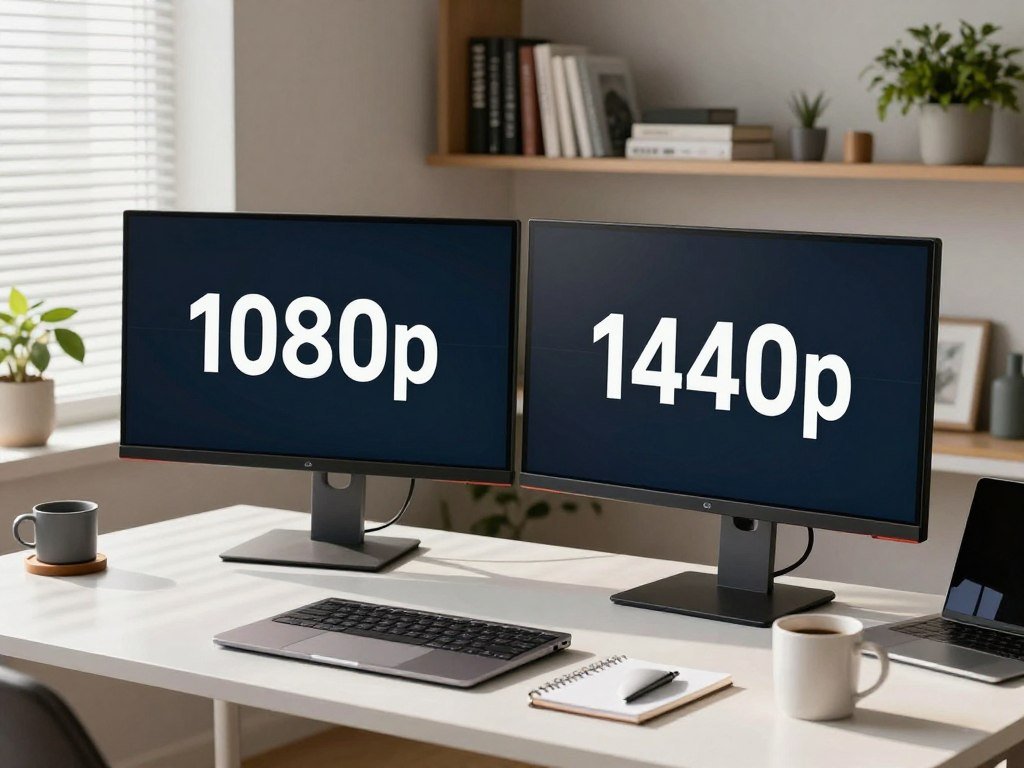
For routine email, documents and calls, 1080p is the budget-friendly baseline; 1440p is the sharper multitasking step up. Resolution is the pixel count expressed as horizontal by vertical pixels. Choose 1080p for everyday office tasks, and move to 1440p when more workspace matters.
Many 22-to-27-inch monitors have native Full HD resolution of 1,920 by 1,080 pixels. Monitors from 24 to 32 inches commonly offer WQHD, or 2,560 by 1,440 pixels. UHD, also called 4K, uses 3,840 by 2,160 pixels.
| Resolution name | Pixel dimensions | Best-fit use and cost consideration |
|---|---|---|
| Full HD, 1080p | 1,920 by 1,080 | Everyday documents and calls; often the lower-cost choice |
| WQHD, 1440p | 2,560 by 1,440 | More room for multitasking; costs more than basic Full HD options |
| UHD, 4K | 3,840 by 2,160 | Detailed images and dense layouts; can cost more than routine work requires |
At a given screen size, more pixels can make text and images appear sharper. A 4K screen with a diagonal size of 27 inches or more suits detailed images or pages displayed side by side. It adds detail and room for dense layouts, but routine office tasks do not require it.
Keep screen size in mind when judging clarity. A 1080p display can handle basic tasks on a 27-inch screen, but 1440p gives more workspace for several windows. Compare resolution at the screen size you plan to buy, not as a stand-alone specification.
Does panel type and color quality matter for office work?
Panel type matters most when your viewing position changes or your work depends on color consistency. An IPS panel offers wide viewing angles and consistent colors when you shift position or share your screen. Bright images alone do not prove that a monitor shows accurate color.
The MSI Pro MP243W E14 gives a useful example of the difference between brightness and color measures. Its measured coverage is 99% sRGB and 77% AdobeRGB, with color accuracy rated at Delta-E 1.35. It reaches 359 nits of brightness and has 1,380:1 contrast.
Color gamut describes the range of colors a screen can show. sRGB is a common color range for everyday web work, while AdobeRGB covers a wider range. Delta-E measures the difference between a displayed color and its intended color, so lower values mean a closer match.
The MSI’s measured color performance suits everyday tasks, but not professional photo editing or color grading. A high brightness or contrast figure alone does not establish color accuracy. A vivid demo image can look appealing without showing how closely the monitor matches real color values.
For email, calls, and text documents, many people will not need professional color coverage. Designers and photographers should look beyond brightness and contrast numbers before relying on a monitor for paid work. For color-sensitive paid work, check measured gamut and accuracy rather than relying on a vivid-looking demo image.
Is a high refresh rate useful for work or gaming?
For documents and email, prioritize a comfortable image before paying extra for a gaming-level refresh rate. A gaming monitor can handle office tasks, but a high refresh rate is usually a gaming extra rather than a work requirement. For everyday work, text clarity and comfort matter more than a very high refresh rate.
Refresh rate tells you how often the display refreshes its image each second. Pixel response time measures how long a pixel takes to change from black to white or between gray shades. Input lag is the delay between an action, such as a mouse click, and the monitor showing the result.
A 1ms gray-to-gray response time is ideal for gaming, while 6ms can still show games without much blurring or ghosting. Input lag of 20ms to 25ms can be acceptable for everyday applications. Response time and input lag describe different parts of the screen’s performance.
The Lenovo Legion R27fc-30 lists at $218, above the under-$200 budget guide. It has a 280Hz refresh rate, a 1500R curve, and a glossy VA panel. Its brightness is over 300 nits, but its viewing angles are limited.
Before choosing a gaming monitor, check these three things:
- Refresh rate for the games you play.
- Response time for clear motion.
- Glare and viewing-angle fit in your room.
A fast screen may suit a mixed gaming and office setup, but pay for the speed only if you will use it. For more on how room needs and gaming features affect display choices, see this guide to choosing a TV. If the screen will sit beside a bright window, treat the glossy finish as a practical drawback, not a cosmetic detail.
Which stand and comfort features help during long workdays?
A stand that puts the display at a comfortable height can be more valuable than a decorative feature. A fully adjustable stand can offer height, tilt, and swivel changes, plus rotation between landscape and portrait. Adjustability helps you match the screen to your posture and task.
Adjusting height, tilt and orientation
Height adjustment helps you place the display at a level that suits your seated position. Tilt lets you angle the screen, while swivel turns it toward another seat or work area. Portrait rotation can help when you read long pages or work with tall documents.
Some desks also use a monitor arm or a desk riser to change screen placement. A riser can add height to an existing desk, but its surface and height range need to suit your equipment. Keep the rest of your workspace in mind when choosing a support.
Reducing glare and eye fatigue
A matte anti-glare finish can help reduce reflections from windows and lamps. Flicker-free backlights and low-blue-light modes are features to consider, but they are not guarantees against eye strain. Lighting, screen settings, and how long you work can also affect comfort.
Built-in speakers can save desk space when you need simple audio. When speaker output matters, look for at least 2 watts per speaker. Small speakers may suit basic calls, while people who need fuller sound may prefer separate audio equipment.
For more ideas on arranging desk gear and screen position, see these home-office setup ideas. Position the screen so you can work upright without leaning forward to read.
Which ports should a home-office display have?
The right port is the one that connects your actual computer without extra adapters or cable swaps. Check the connections on both the computer and monitor before buying. USB-C can carry video, data, and laptop charging over one cable when both devices support those features.
Connecting a laptop with USB-C
A single USB-C cable can reduce clutter in a laptop-based home office. The laptop and monitor must both support the video and charging features you need. A USB-C port alone does not confirm that every feature works through that connection.
Some USB-C monitors also include a hub for accessories, but the number and type of connections vary. Check whether the monitor can supply enough charging power for your laptop. If it cannot, you may still need the laptop’s own power adapter.
Matching ports to a desktop or older device
HDMI is a common connection for laptops, desktops, and monitors. HDMI 2.0 is a baseline for 1440p performance at 60Hz. DisplayPort is common in desktop setups, while VGA can connect older equipment.
Use this four-point port checklist before choosing a monitor:
- Video input matches the computer’s available output.
- Laptop charging is needed or not needed.
- Accessory connections match your keyboard, mouse, or other gear.
- Any adapter needed is available for your setup.
A port mismatch can mean extra adapters, cable swaps, or a connection that does not support the display you want. Verify the exact input and charging support on both devices before ordering.
How much desk depth and viewing distance do different sizes need?
Desk depth and viewing distance should be checked together, since a large screen can force an uncomfortable seating position. A general rule is to sit about 1.5 to 2.5 times the screen diagonal away. Use that range as a starting point, then check how the monitor fits your actual desk.
A 24-inch monitor has a recommended viewing distance of 50-60cm and an approximate desk depth of 50-60cm. A 27-inch monitor has a recommended viewing distance of 65-80cm and an approximate desk depth of 60-75cm. Those figures can help you check whether your chair and screen position fit together.
A 32-inch monitor has a recommended viewing distance of 75-100cm, with an approximate desk depth of 70-85cm. A 34-inch ultrawide has a recommended viewing distance of 80-110cm and an approximate desk depth of 80-90cm. Both need more room than a compact display.
These measurements are practical starting points, not fixed rules for every workspace. A wide stand footprint can reduce room for other desk items. Seating position can also change how much usable depth you have in practice.
Move your chair to its usual work position before judging where the screen will sit. That helps you check the space between your eyes and the display, rather than relying on desk size alone. Measure from your eyes to the display in your normal seated posture, not from the desk edge.
Is a dual-monitor setup worth it for working from home?
A second screen is most useful when you regularly compare documents or keep a call visible while working. It can hold reference material, email, or a video call while the main screen stays focused on active work. A second monitor helps most when it cuts repeated window switching.
One suggested home-office setup pairs a 27-inch 1440p primary monitor with a 24-inch secondary monitor. Treat this as an example, not a rule; a smaller second screen may suit your tasks and desk. The primary screen should handle the work that needs your closest attention.
Before adding another display, check these three parts of your setup:
- Desk width for both screens and their stands.
- Matching input availability for your computer.
- The primary screen’s position directly ahead of you.
A second display can help with tasks that use two sources at once. For example, you might keep a spreadsheet open while reading a reference document, or keep a call visible during note-taking. For more ways to arrange a small or shared work area, consider these workspace layout ideas.
Two screens also take up more space and can add more cables to manage. Check whether your computer can connect both displays before buying a second one. Add a second display only if it saves repeated window switching in your real workflow.
Which monitor suits coding, spreadsheets and creative work?
The more windows or visual detail a task needs at once, the more useful extra screen workspace becomes. A 27-inch 1440p screen is a strong fit for many desk-based tasks, while bigger creative layouts may benefit from 32 inches. Choose the screen and image quality to match the work you do most often.
Coding and spreadsheet-heavy work
A 27-inch 1440p monitor can show code, documents, and terminals side by side. The added space can also help when you compare spreadsheet columns or keep a reference open beside your main file. It gives many people a useful balance between visible information and desk size.
A 32-inch monitor with 1440p or 4K is the larger-workspace choice for office work when your desk allows. It can make dense spreadsheets or multiple panels easier to see together. The extra screen area is less useful if your desk forces you to sit too close.
Photo editing and graphic design
A 27-inch 1440p IPS monitor is a sensible starting point for photo editing and graphic design. It combines sharp detail with an IPS panel’s broad viewing angles. Color-critical work still calls for accurate color, not just a sharp image.
Casual edits may not need professional color tools, but paid work can depend on how closely the screen shows the intended colors. Your choice should reflect the final work and the level of color matching it requires. A pleasing image on screen is not proof of a reliable color match.
Video editing and creative production
A 32-inch screen with 1440p or 4K can make room for a video timeline, preview, and tool panels. That layout can keep more of a project visible while you work. A larger display may suit an editing desk where several controls stay open.
For a compact desk, a smaller screen may be easier to place, even if it shows fewer panels at once. Consider how much of your project needs to remain visible during typical work. Choose the resolution and panel for the task, then confirm the desk can keep the whole image comfortably in view.
How much should you spend on a work-from-home screen?
The cheapest tier can cover basic office work, while spending closer to $200 usually gives more room to prioritize a specific feature. Set your price limit around the work the monitor needs to support. Spend more only when the added feature solves a real need.
Under $100 for basic tasks
Monitors under $100 are typically basic Full HD screens with 1,920 by 1,080 pixels. They are usually 23.8 or 27 inches, while even the cheapest 32-inch monitors cost over $100. At this price, check the stand and connections as carefully as the display.
$100 to $200 for more choice
The $100-$200 range can offer more choice among higher resolution, USB-C hubs, faster refresh, and better stand adjustment. You may need to choose which features matter most instead of expecting every upgrade at once. A monitor with one useful extra may be a better buy than one with several extras you will not use.
When spending more may make sense
Monitors in the $300-$400 range can offer more features with fewer compromises. Spending more may make sense when a specific job needs a feature that lower-priced screens lack. A higher price by itself does not mean the monitor fits your desk or daily work better.
| Spend band | Typical display or feature choice | Trade-off to check |
|---|---|---|
| Under $100 | Basic Full HD, usually 23.8 or 27 inches | Stand and connection options may be limited |
| $100-$200 | More choice in resolution, USB-C hub, refresh, or stand | Some features may require a trade-off elsewhere |
| $300-$400 | More features with fewer compromises | Extra cost should meet a clear work need |
A firm limit can help keep optional upgrades from driving up your total cost. Compare the monitor’s useful features with the time you spend at the desk and the tasks you need it to handle. Set the maximum spend first, then pay extra only for a feature you will use regularly.
What mistakes should you avoid when buying a budget display?
A low sticker price can become poor value if the display does not fit the room or the way you work. Desktop monitors generally range from 19 to 45 inches diagonally, and ultrawide displays can reach 57 inches. The largest available screen is not automatically the right home-office choice.
A monitor’s screen size is its diagonal measurement, but the screen is only part of the space it needs. Stand size and placement affect how much room remains for other desk items. Watch for these four common buying mistakes:
- Buying a screen too large for the desk can crowd your work area or make placement awkward.
- Choosing resolution without considering screen size can leave you with an image that does not suit your needs.
- Overlooking stand or connection limits can add the cost of a stand, arm, or adapter.
- Paying for gaming performance you do not need can take money from useful work features.
Those problems can turn a low-cost option into a less useful display. Check what the monitor includes and whether it connects to your computer in the way you expect. A lower price does not make a stand or input limit disappear.
Think about the whole setup, not just the panel and its listed features. A large display can be a poor fit in a small room, even if it offers an appealing price. Read the full specification sheet for inputs, stand adjustment and mounting compatibility before you buy.
Is a portable monitor practical for a laptop-based home office?
A portable monitor makes the strongest case when your workspace changes or must be cleared after work. It can add a second screen to a laptop setup and pack away when you need the desk for another purpose. A portable display suits a work routine that includes moving the screen between places.
Portable monitors commonly use a 14-to-16-inch screen. That smaller size can work well beside a laptop when you want another window visible, such as notes or a reference page. It is often more useful as an added display than as a replacement for a larger fixed screen.
A compact display makes sense when you need to pack the setup away or move between workspaces. For a stationary desk, a larger fixed monitor may offer more value for detailed work.
A portable screen can help in a shared room where work gear needs to be put away. It can also suit people who regularly change work locations. The smaller screen gives up some visible room, but the setup can move with you.
If you stay at one desk and need space for detailed work, a desktop display may serve you better. The larger fixed screen can show more information at once, which may matter for dense documents or creative tasks. Choose portability when moving the screen is part of your routine, not just because the display is compact.
Conclusion
The right budget choice is the one that fits your daily tasks, desk and computer without paying for unused extras. Match screen space and resolution to the work you need to do, then treat comfort and connectivity as core requirements.
Before comparing current listings, measure the usable desk area and check your computer’s video ports. Those two checks can rule out poor fits before price and optional features complicate the choice. Measure the workspace and confirm the computer’s ports before choosing a model.
FAQ
Is 1080p sharp enough on a 27-inch monitor?
Will an IPS monitor under $200 work for photo editing?
Can I use a high-refresh-rate gaming monitor for spreadsheets?
Do I need USB-C to connect a laptop to an external display?
Is a portable monitor practical as my only home-office display?
Can built-in monitor speakers handle work calls?